AI B-Roll: How to Add B-Roll to Any Video Automatically
How AI b-roll works, how to add matching b-roll to your talking-head videos in minutes, which shots work best and how much b-roll to use.
Animatid Admin··7 min read
On this page
A talking-head video lives or dies on its b-roll. Without it, viewers stare at one face for two minutes and drift away. With it, every point you make gets a visual, the pace picks up and people keep watching. The catch: finding and cutting in good b-roll by hand takes hours, which is why so many creators hire an editor just for this.
AI b-roll changes that. You upload your video, the AI listens to what you say, and it covers the right moments with matching footage automatically, while your voice keeps playing. This guide explains how AI b-roll works, how to add b-roll to your videos in a few minutes, and how to make sure the result looks professional instead of random.
The short version: an AI b-roll tool transcribes your video, finds the moments where a visual helps (a product, a place, an action, a result), searches royalty-free footage for each one and cuts it in on the word. You keep your audio; the b-roll covers the picture for a few seconds at a time.
B-roll is the supporting footage you cut away to while the main footage (the A-roll, usually you talking to camera) keeps its audio. When a cooking creator says "we roast the beans in small batches" and you suddenly see beans tumbling in a roaster, that's b-roll.
It does three jobs at once: it shows what you're talking about, it adds pace so the video doesn't feel static, and it hides cuts, so you can trim pauses and mistakes from your A-roll without visible jumps.
Animatid is an AI video editor that turns a short description into an explainer or animated video. See how it works.
AI b-roll
means the AI does the b-roll editor's job: deciding
where
b-roll should go,
what
it should show,
finding
the footage and
cutting it in
. Instead of scrubbing through a timeline and searching stock sites clip by clip, you get a finished edit you can then refine.
Good AI b-roll tools don't just sprinkle random stock clips over your video. They base every cutaway on what you're actually saying at that moment.
How AI b-roll works (step by step)
Transcription: the AI turns your speech into text with a timestamp for every word.
Picking the moments: it reads the transcript and finds the moments where a visual helps: when you name a product, a place, an action, a number or a result. It skips greetings and lets viewers see your face at the start and the end.
Deciding what to show: for each moment it writes a concrete search, like "barista pouring latte" or "team meeting in office", plus simpler fallbacks.
Finding footage: it searches royalty-free stock libraries for clips that genuinely match, and rejects loose matches. A sunset tagged "cinnamon" is not cinnamon rolls.
Cutting it in: each cutaway starts as the key word is spoken, lasts 2–4 seconds and ends at a pause, with a cut, fade or zoom. Your audio plays straight through.
AI b-roll example
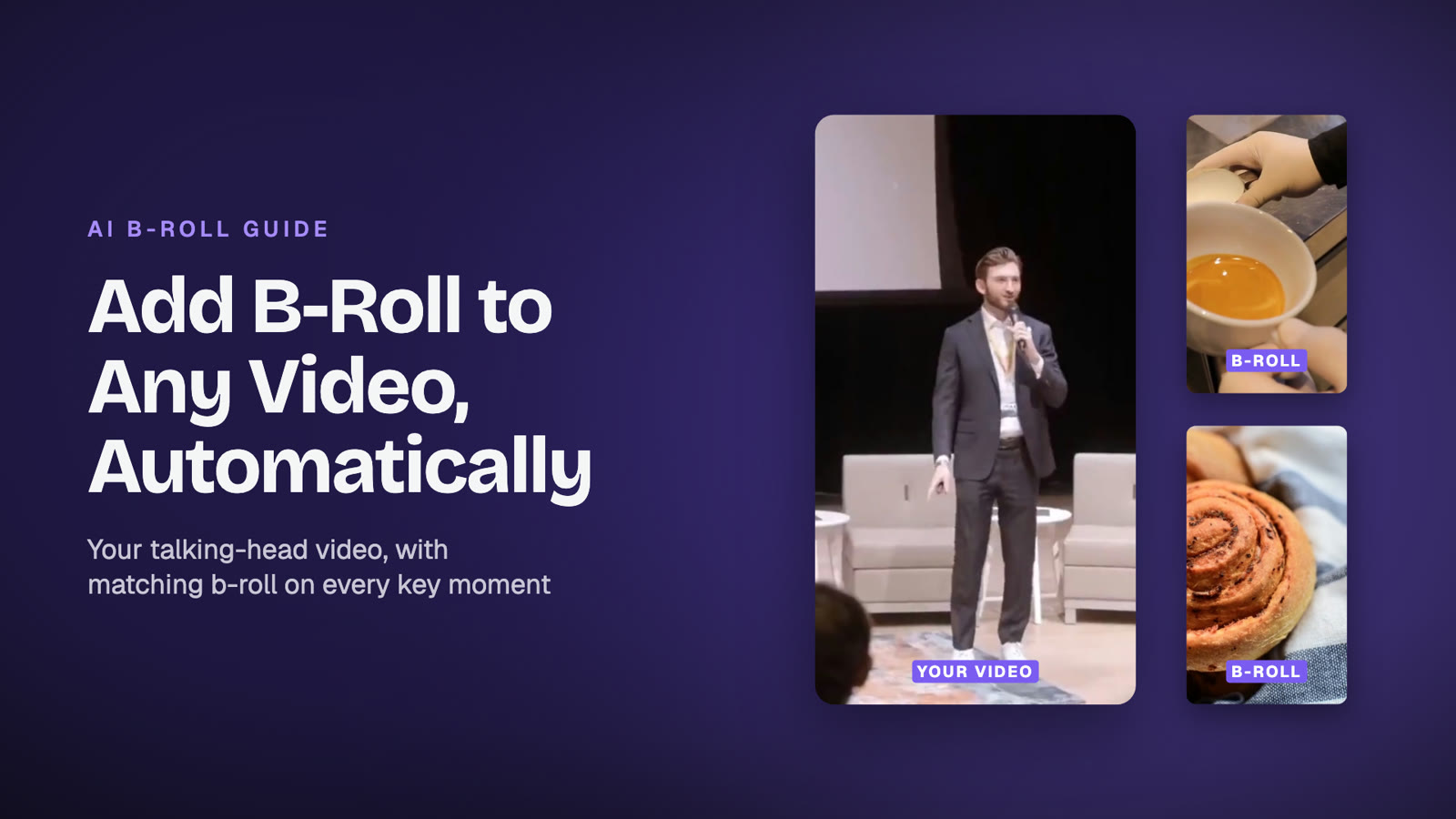
Here's a 21-second talking-head video run through Animatid's AI b-roll. The speaker talks about a cozy coffee shop, hand-poured lattes and fresh cinnamon rolls; the AI cut in matching b-roll on each of those words and kept the speaker on screen the rest of the time.
AI b-roll in action: a cozy cup of coffee, a latte being poured and cinnamon rolls, each cut in on the word (shown muted).
Nothing was searched or edited by hand. The whole edit took a few minutes, and changing a clip is one message: "use a different clip for the latte".
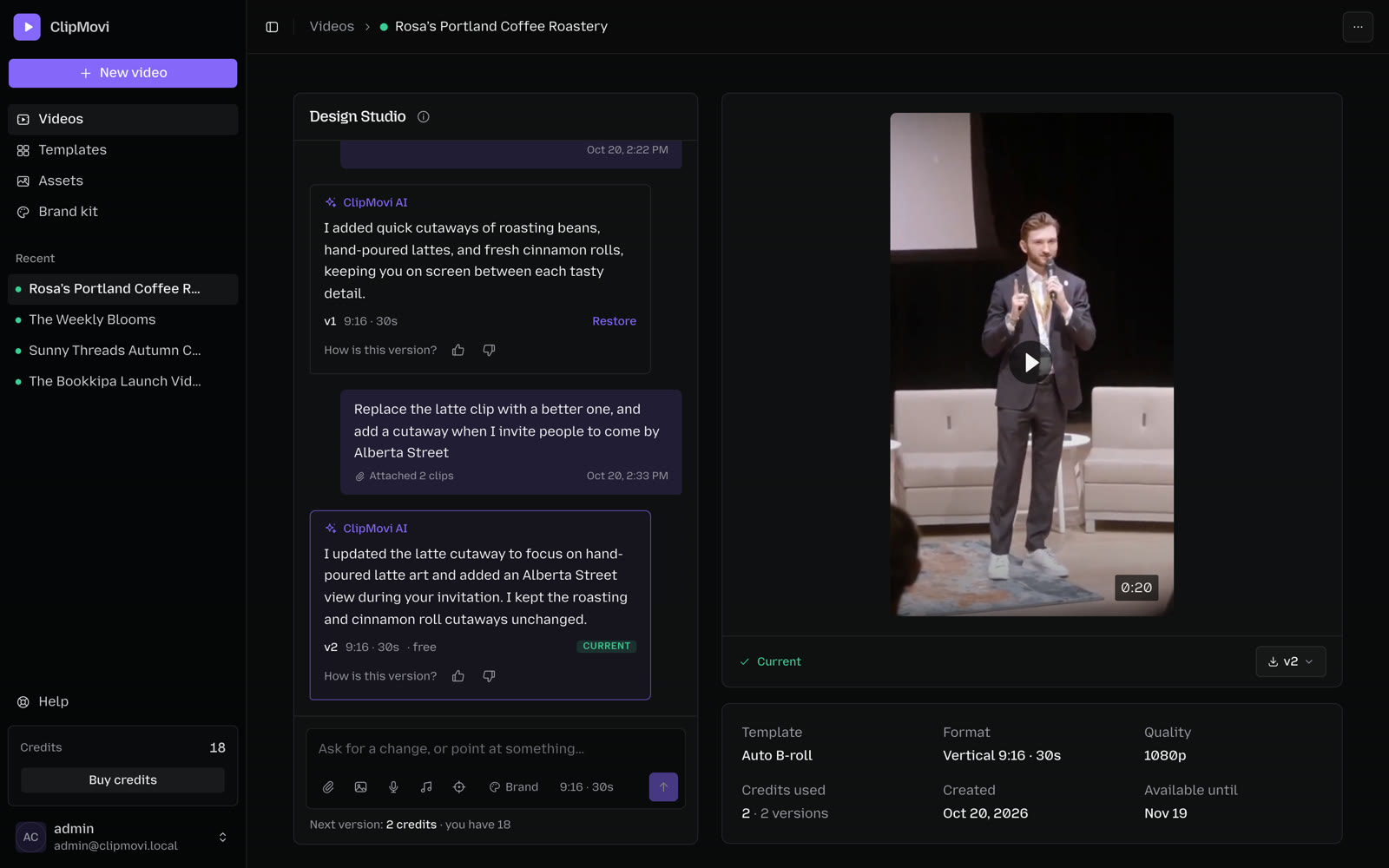
Design Studio for the example: one message asked to replace the latte clip and add a cutaway for the street, and a new version was ready in minutes. The first change was free.
How to add b-roll to your video with AI
With Animatid it takes about two minutes of your time:
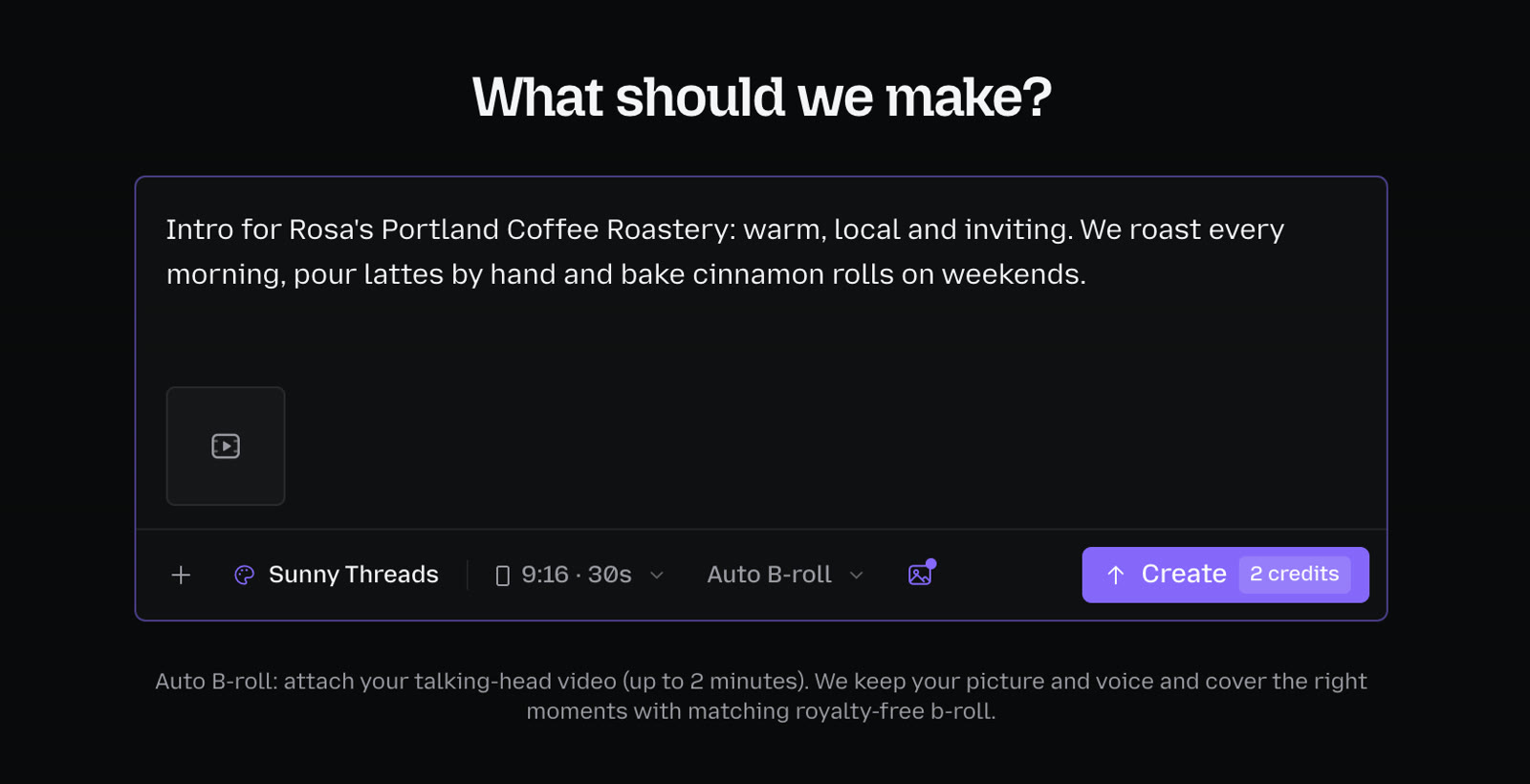
Choose Auto B-roll. Start a new video and pick Auto B-roll as the style.
Upload your video. Any talking-head video up to 2 minutes: a YouTube intro, a Reel, a podcast clip, a product walkthrough. The length is set to fit your video automatically.
Say what it's about. One sentence helps the AI pick b-roll that fits your topic and tone.
Click Create. A few minutes later your video is ready, with b-roll cut in at the key moments and your voice untouched.
Refine by chat. In Design Studio, ask for changes like "swap the street clip for something cozier" or "add b-roll when I mention our app". Your first change is free.
Auto B-roll in Animatid: describe the video and attach your clip. The length (here 30 seconds, 2 credits) is set from your video.
Whether you edit by hand or with AI, these are the shots that make talking-head videos feel professional:
Cutaways to what you mention: the product, place or object you just named. The most common and most useful type, and exactly what AI b-roll is best at.
Process shots: hands making, pouring, typing, building. Great for "how we do it" moments.
Details and close-ups: textures, ingredients, screens, packaging. They add richness and make cuts invisible.
Establishing shots: the city, the building, the store front. Use them when you change topic or location.
Results and reactions: happy customers, a finished product, a full room. Use them when you talk about outcomes.
Your own footage: screen recordings, product shots and behind-the-scenes clips always beat stock footage. Film them when you can.
How much b-roll should a video have?
For most talking-head videos, b-roll should cover roughly 20–50% of the runtime, in cutaways of 2–4 seconds, about one every 5–10 seconds of speech. Less, and the video feels static; more, and viewers lose the connection with the person talking.
Keep the first 2–3 seconds on your face so people know who's talking, return to camera between cutaways, and end on your face for the call to action. Animatid's AI b-roll follows these rules automatically and never covers more than about half of your video.
Where does AI b-roll footage come from, and is it safe to use?
Most AI b-roll tools pull footage from royalty-free stock libraries. Animatid uses royalty-free footage and photos licensed for commercial use, so you can post your video on YouTube, social media and ads. Your own video is never used to train anything or shared.
Tip: if a moment needs something very specific, like your actual product, storefront or team, attach your own clips. Stock b-roll is best for general visuals.
AI b-roll vs. editing it yourself vs. hiring an editor
Editing it yourself: free but slow. Finding, downloading, trimming and placing b-roll for a 1-minute video can take an hour or more.
Hiring an editor: freelancers on marketplaces often charge from tens to hundreds of dollars per video, with a turnaround of days and back-and-forth feedback.
AI b-roll: minutes per video and a few dollars. With Animatid you pay 1 credit per 20 seconds of video (from $3), and your first video is free.
For a creator posting several videos a week, the time saved is the real win: the edit that used to take an evening now takes a coffee break.
Tips for better AI b-roll
Speak concretely. "We roast beans every morning" gets great b-roll; "we're passionate about quality" doesn't. Name things.
Pause between ideas. Natural pauses give the AI clean points to start and end cutaways.
Describe your topic in the brief. One sentence about your business and tone helps the AI choose fitting footage.
Film in good light, facing the camera. B-roll can't rescue a dark, shaky A-roll.
Review and swap. If one clip isn't right, ask for a different one. It takes seconds.
Frequently asked questions
What does b-roll mean?
B-roll is supporting footage that cuts away from the main footage (A-roll) while its audio continues, used to show what's being described, add pace and hide cuts.
Can AI add b-roll to my video automatically?
Yes. AI b-roll tools like Animatid transcribe your video, choose the moments that need a visual, find matching royalty-free footage and cut it in on the right words, automatically.
Will AI b-roll change my audio?
No. Your original audio plays straight through. The b-roll only covers the picture for a few seconds at a time.
Is AI b-roll footage free to use commercially?
Animatid uses royalty-free footage licensed for commercial use, so you can publish the video on social media, YouTube, your website and ads.
How long can my video be?
Animatid's Auto B-roll works with videos up to 2 minutes, in vertical 9:16, square 1:1 or landscape 16:9.
Can I choose or change the b-roll clips?
Yes. After the first version, ask for changes in Design Studio, such as a different clip for one moment or b-roll at a new moment, and get a new version in minutes.
Add b-roll to your next video in minutes
Great b-roll used to mean hours in a timeline or paying an editor. Now you can upload a talking-head video and get it back with matching b-roll on every key moment.
 Animatid Admin7 min read